Tuesday, May 21, 2013

MOjo Monday Challenge!

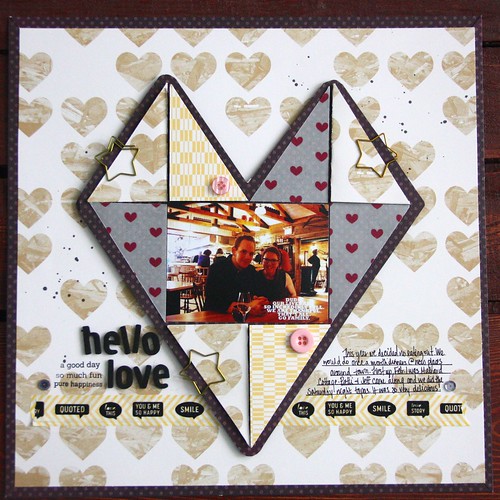
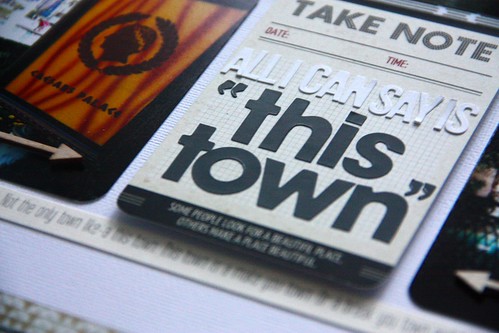
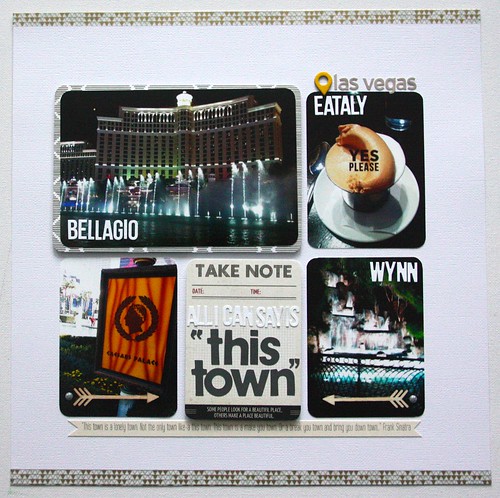
Today I'm sharing a Mojo Monday challenge with you from my local store, The Paperie.

Go to their blog to check out the details but here's a peek!

IMG_3373

Gotta love that sentiment! Check out the brad! It was just calling to me.

xoxo
K


Monday, May 20, 2013

Photoshop Elements Tutorial: Creating Photo Collages

*Dedicated to my dear friend Heather! ;)

I’ve been ages trying to put this tutorial together for some of my KTOL students and it’s finally done. I did a little demo for them during their class in April but promised to do a little blog post for future reference.

I’m trying to keep it simple here for the masses. I am by NO means a photoshop expert-see Ali Edwards digital scrapbooking posts & Cathy Z’s tutorials for something more advanced. But I’ll do my best to show you a simple way to create what I call 2-up & 4-up photos on a 4 by 6 canvas.

First of all, I’m working with Photoshop Elements 8 which is the most current version I have. As far as I can tell, the most recent version of Photoshop Elements has the same symbols for the tools so it shouldn’t be too difficult to figure out.

If you’d like to follow along as I go, you can download a free 30-day trial copy of Photoshop Elements 11 on the Adobe site. It’s right here!

So, first we want to open up photoshop and create a blank canvas. I’m sticking with 4 by 6 photo canvas’ because that is what most people will create to upload for printing but you can also follow the same steps to create a 5 by 7 or any other size you want, just change the length and width to suit your needs.

So first go to the ‘File’ button at the top and click on ‘new’. You may also be prompted when you open by a little rectangular screen- click on ‘start from scratch’. Once you hit ‘new’ or ‘start from scratch’ you will get this screen.

#1

You cant to create a canvas which is 6 by 4 by 300 pixels/inch. Insert all your information here and name your canvas if you like. Hit ‘okay’ to take you to this screen.

#2

Now, we want to open a few photos so we can crop them and add them to this canvas. You can either go to ‘file’ and click ‘open’ or you can hold command + O (Mac) or ctrl + O (PC).

#3

I chose my photos from iphoto but go where ever you store your photos and choose two pictures.

Once they are open you want to crop them-we’re going to make them 3 by 4 vertical pictures. So we’re going to click our  mouse on the crop tool. See the tool that’s circled.

#4

After clicking on it you’ll notice that the bar at the top of the photoshop program will change so you can alter your dimensions for cropping.

#5

Always, keep your resolution the same as the canvas you created. We created a canvas with 300 pixels/inch so we’ll continue to use that number for cropping (see: resolution).

Crop your two images-you may notice they get much smaller. That’s okay.

#7

Next we’ll take them and add them to our canvas. Go back to your cursor tool.

#6

Click and drag your photo onto the white canvas. Alternatively, you can hit command + A(mac) or ctrl + A(pc) to highlight the whole thing then hit command + c or ctrl +c to copy & command + V or ctrl + V to paste onto your canvas.

#8

Move your photo around your canvas to suit your needs.

#9

Then move the other one onto the canvas in the same fashion.

#10

You can add text using the ‘T’ tool & brushes or whatever you like.

#12

When you’re done go up to ‘layer’ and scroll down to ‘flatten image’ and click there. You’ll notice that all your layers on the right hand side change into one layer. This is what we want in order to save it as a jpg (for easier uploading).

#13

Now, we’ll save the photo. Go to ‘file’ or hit command + S or ctrl + S You’ll see that it wants to save it as a jpg-if it doesn’t say JPG then you need to go back and check that you’ve flattened your image.

#15

You’ll get this screen- Chose to save it at the maximum quality so you get the best picture even though it’s larger. and hit okay.

#16

And that’s it. All done.

To create a 4-up photo like this one- you just open 4 photos instead of 2 and change your cropping to 2 by 3 by 300 resolution and crop them and drag them onto a 4 by 6 canvas. Here's an example-

valentines

You can also do 2 by 2 by 300 resolution if you open 6 photos and crop them and drag them on a 4 by 6 canvas. Here’s an example of that one-


eugene4

I hope that you try out this method to get more from your pictures and more bang for your buck. I know that there’s nothing more annoying that printing a bunch of 4 by 6 photos and having to cut them all down. It’s such a waste. And using photoshop is much quicker and convenient at home rather than trying to create the photo collages at the Kodak picture maker in your local drugstore or supermarket. If you create them all at home you just have to hit that beautiful ‘select all’ button when you go to have your pictures developed!

Good luck!

xoxo
K


Friday, May 17, 2013

5 For Friday

1. This week I downloaded the ifontmaker app. It's very neat. I made a few fonts- check out this one use code 3375- but I also found a few that I really liked. Check this one out. It's neat.

2. We've been watching an obscene amount of The Wire after discovering it on HBO on demand. We're on Season 4 and it is so good.

3. I got a haircut. A very necessary haircut. I don't color my hair so I find that I let it grow and grow for far too long. But, it's nice and refreshing to have a haircut!

haircut

4. Have I mentioned how much I love Elise Blaha and her blog? Yes, maybe a million times already. She had a post up this week about her 'mornings' and it just made me yearn for summer. I can't wait to maintain a more consistent morning schedule -my days are so random due to the nature of being a substitute teacher so I'm looking forward to a summer of consistent routine and I'm sure Eugene is too. He gets tugged around so often because sometimes it's a work day and sometimes it's not.

5. I pinned this pin on pinterest this week. They are technically little cards from Basic Grey's latest lines-hipster is my new fav- but I'm thinking of using them as posters in the scrapbooking room once it's painted. Add them to your PL folder for safe keeping!

xoxo
K

Thursday, May 16, 2013

NYC: A Simple Story Part Trois

*For part one & two see the past two blog posts.

Window displays. I love them. It's almost as good to window shop as it is to buy something for yourself. And New York does window displays like nobody else. And at Christmas time they take it up a notch!

Check these out...

*still missing a little journaling here. 
IMG_3336
IMG_3337
IMG_3338
IMG_3339

I used a little gold printed velum from Kelly Purkey's DD kit for each of the backgrounds for the circles which name each of the stores. I used Kelly's font stamps, Eleanor to stamp each of the titles onto white woodgrain paper. 

IMG_3358

And then there was the food. I love food. I already made a mini album about it but I couldn't help but add it into this one as well because I love it so.

IMG_3340

IMG_3341

On a tip from Kelly I used my Gold Brilliance ink to stamp right onto my photos using her food themed stamp set. I love the effect.

IMG_3359

The cheese, the ice cream sandwiches. Yum times two.

IMG_3342

I used the Epiphany tool to make this little badge. It's super easy and actually really cute too! A little stamping and then punching it out sticking it to the clear bubble.

IMG_3360

An awesome brunch with some of my fav camp girlfriends from back in the day. And of course, date night at Otto, a Mario Batelli restaurant.

IMG_3343

More stamping on photos and some little gold letters.

IMG_3361

And that's it. She's done with a little washi tape and some thickers!

IMG_3344

I hope you enjoyed my mini album. It wasn't so mini! Again, if you would like to see part one or two click on the link to take you to those posts!

xoxo
K


Wednesday, May 15, 2013

NYC: A Simple Story Part Deux

If you missed it, yesterday I shared part one of my Simple Stories album about our visit to NYC for American Thanksgiving.

And on to today.

IMG_3328

A little Thanksgiving football- Jets vs. Patriots. And our first tailgate party-complete with Turkey and all the fixings. It was epic.

IMG_3353

I used a little velum speech balloon to do a little journaling about the game. It was a bust and the Jets lost-like by a lot.

And then we shopped. Well, correction- I shopped. At Macy's. At midnight. Yep. Bucket list item. It was pretty cool and I got some really great deals actually. It still needs a little journaling.

IMG_3329

I couldn't get over some of the store displays-two of my fav were J. Crew and Anthro in Rockefeller Plaza. I used tiny Lily Bee stickers to identify each display.

IMG_3354

And then we traveled to Brooklyn. It was as cool as I expected it to be.

IMG_3330

More little letters and I love the little wood veneers with the phrases on them.

IMG_3355

MOre Brooklyn. We visited the Brooklyn Flea & happened upon the Brooklyn Art Library. They have the coolest project there-the sketchbook project.

IMG_3332

A lot of love for the Brooklyn Art Library. It was perhaps the neatest library. I would have stayed for ages just exploring the sketchbooks.

IMG_3356

And then there were the decorations. This city gets decked out for the Holidays. It truly is magical.

IMG_3333

IMG_3335

Tomorrow I'll be back to share the window displays and more. Oh the window displays. They are stunning pieces of work.

xoxo
K